
Custom Code Copy
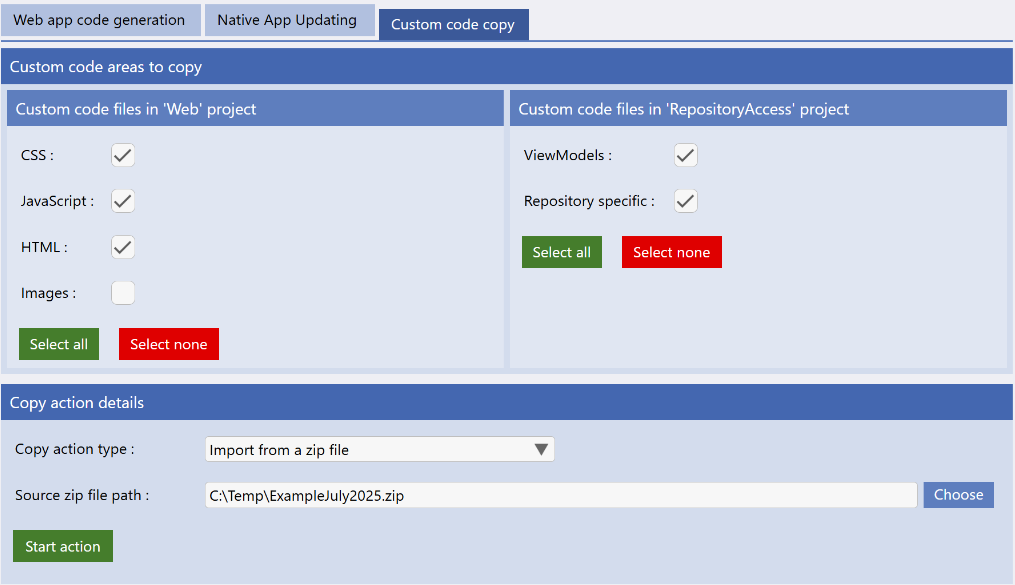
The Evoke custom code copy function should be used to preserve any custom code and images you have created or added in your Visual Studio solution. This function can be used if:
-
Backing up your custom code.
-
Recreating your Visual Studio solution
-
Moving to another computer
You can copy and restore the images, custom CSS, Javascript, HTML, Viewmodels and repository specific code from your Visual Studio solution
The custom action type now gives 3 choices:
-
Copy from another Visual Studio solution.
-
Export to a zip file
-
Import from a zip file
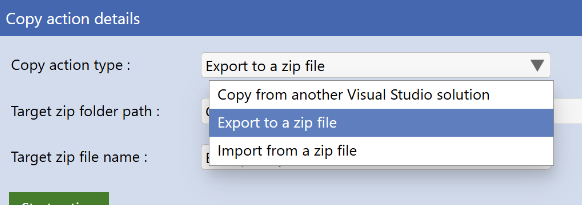
Copy from another Visual Studio Solution
If you have created a NEW Visual Studio solution folder e.g you changed your app name, you specifically wanted to generate to a new clean folder, etc.
You can use the copy from another Visual Studio Solution option to restore your custom code from the original solution to your new solution.
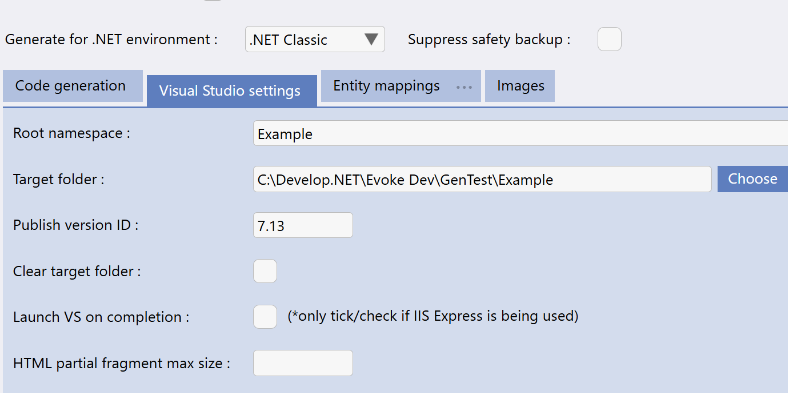
You need to ensure that you have your "Visual Studio Settings" - "Target Folder" is set to the solution you want to add the custom code into
This is very important as it is the place that the custom code, images, etc will be restored to.
You can use the copy from another Visual Studio Solution option to restore your custom code from the original solution to your new solution.
You need to ensure that you have your "Visual Studio Settings" - "Target Folder" is set to the solution you want to add the custom code into
This is very important as it is the place that the custom code, images, etc will be restored to.
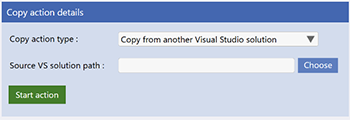
Imports all of the custom code (based on the selections above) from another (your previous) Visual Studio solution.
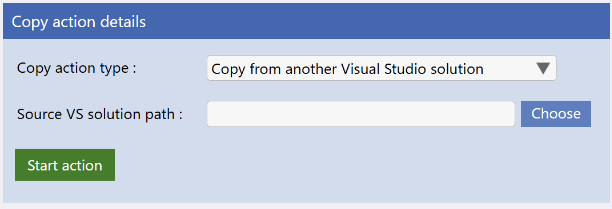
Select what you would like to Restore (see image top right). Tick CSS, Javascript, HTML, Images, Viewmodels, etc.
Choose the Visual Studio Solution file that you would like to import from (this is the *.sln file of your previous solution). Use the "choose" button to browse for the *.sln file on your computer to restore from
Finally click "start action" and it will restore all the items you selected into your new solution all the items you selected.
Export to a zip file
You need to ensure that you have your "Visual Studio Settings" - "Target Folder" set to the solution you want to copy from.
Exports all of the custom code (based on the selections above) to a backup (zip) file. The path for the zip fie and a filename for the file are requested.
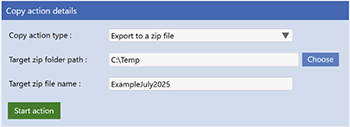
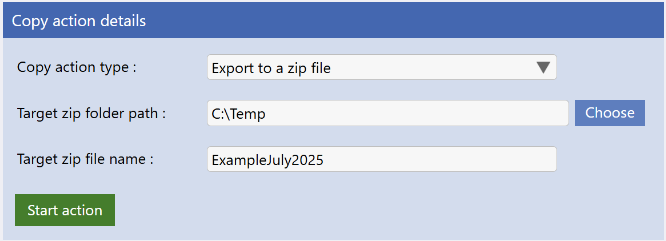
Select what you would like to Restore (see image top right). Tick CSS, Javascript, HTML, Images, Viewmodels, etc.
Choose the "Source zip folder path", use the "choose" button to browse for a folder and zip file on your computer to restore from
Then enter the "target zip file name. This is the name you want to call the zip file.
Finally click "start action" and it will create the zip file you requested with all the items you selected.
Import from a zip file
Once again, you need to ensure that you have your "Visual Studio Settings" - "Target Folder" set to the solution you want to import into.
Imports/restores all of the custom code (based on the selections above) from the backup (zip) file. Select the zip file that was created above.
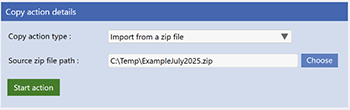
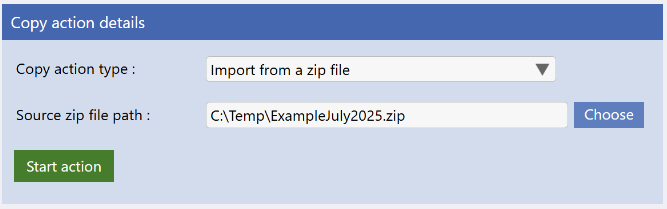
Select what you would like to copy (see image top right). Tick CSS, Javascript, HTML, Images, Viewmodels, etc.
Choose the "Source zip folder path", use the "choose" button to browse for a folder and zip file on your computer to restore from
Finally click "start action" and the custom code, images, etc, will be restored to the selected solution.