Language Translations
The Language Translations Maintenance area of Evoke is reached by clicking the translations button

which appears next to all user defined text throughout your app design, or from the ellipsis on the "Supported Languages" tab in the Apps section.
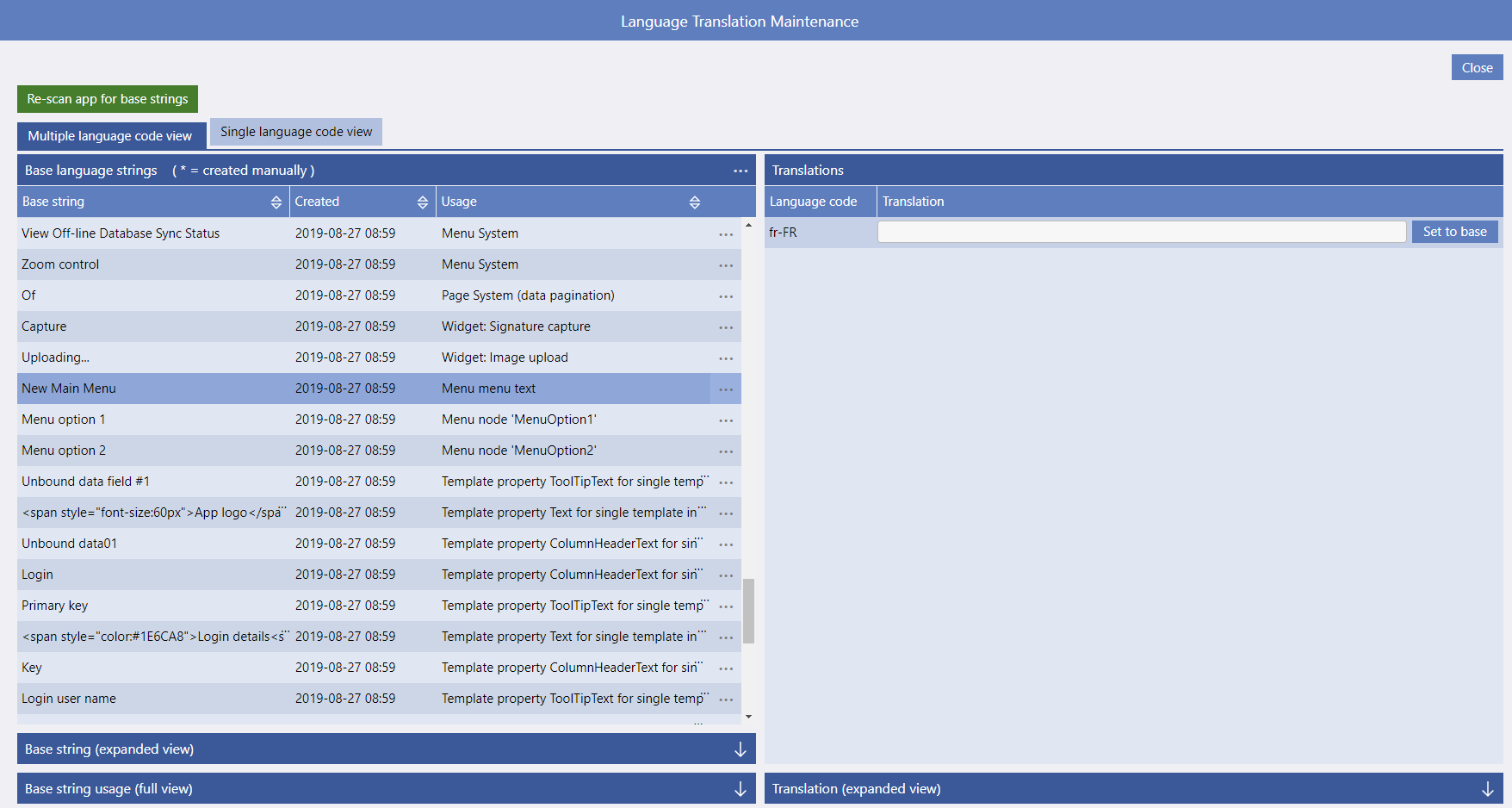
The Language Translations Maintenance screen is shown on the right. The left hand side of the screen contains the
App Base Strings which are all the text strings used within the app in the app base language. As these are a mix of Evoke generated text and user defined text (e.g. a menu definition that you have added) these need to be read into the
Language Transactions when new text is added. The first time into this Language Translations Maintenance area you will need to use the green button
Re-Scan app for base strings in order to populate the base strings for translation.
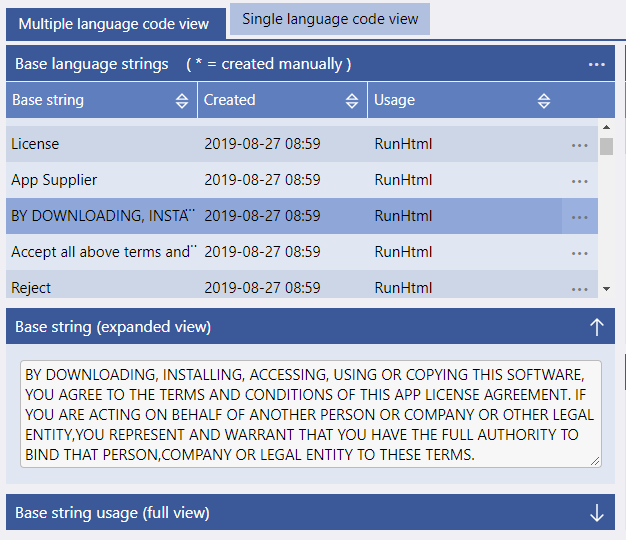
As the "Base String" text can be very long and the "usage" of a string can be multiple locations throughout the app design, there are two boxes (initially collapsed) that can be opened, by clicking on the up arrow on each, to see the full text of the base string (see example on the left) or the full usage of the base string within the app design.
These boxes are provided for convienience of reading the base string or usage only and do not allow the string or usage to be altered. After use they can be collapsed again to provide more screen real estate for the base strings list.
Translating Individual Base Strings
When you click on a
base string in the column on the left, in the
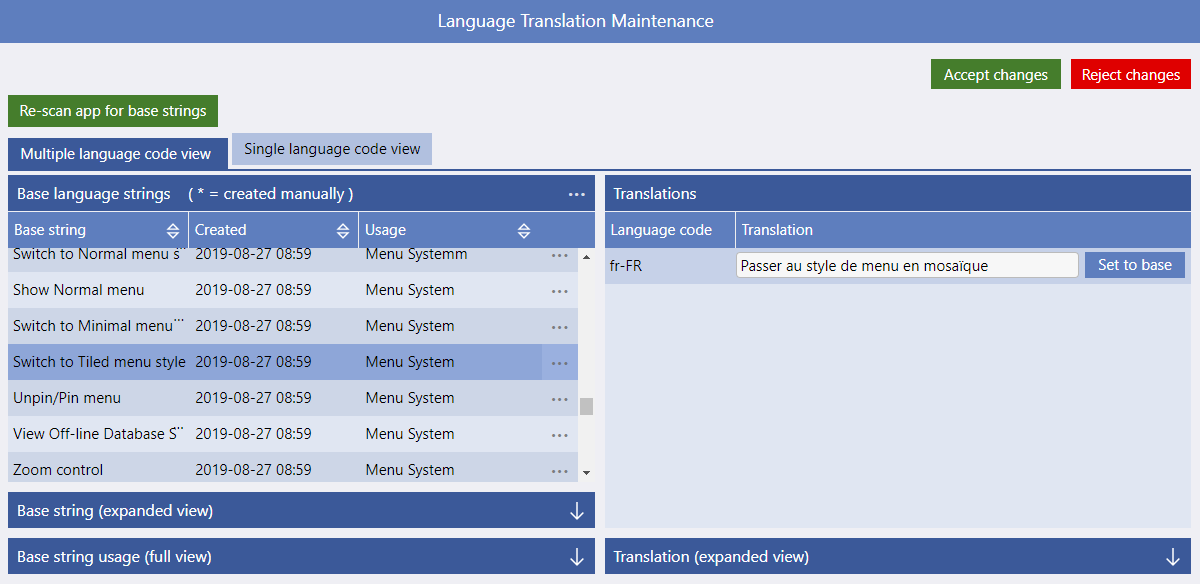
Multiple Language Code View tab, the languages that have been selected as available in this app design will be displayed in the column on the right. See screenshot right.
You are able to add translations for each of the languages that you have made available in the app design
If you wish you can use the Set to Base button to add the base string original text into the translation box to either change or because the translation is the same as the original.
Whenever you make a change to the translations you will be offered the Accept / Reject buttons (shown on the left) at the top of the screen. These allow you to commit the transalations to the design or to reject/dismiss them.
Translating Multiple Base Strings
It may be easier to translate blocks or groups of base strings (text) e.g. when using a translation service or if you would like to complete multiple translations at the same time.
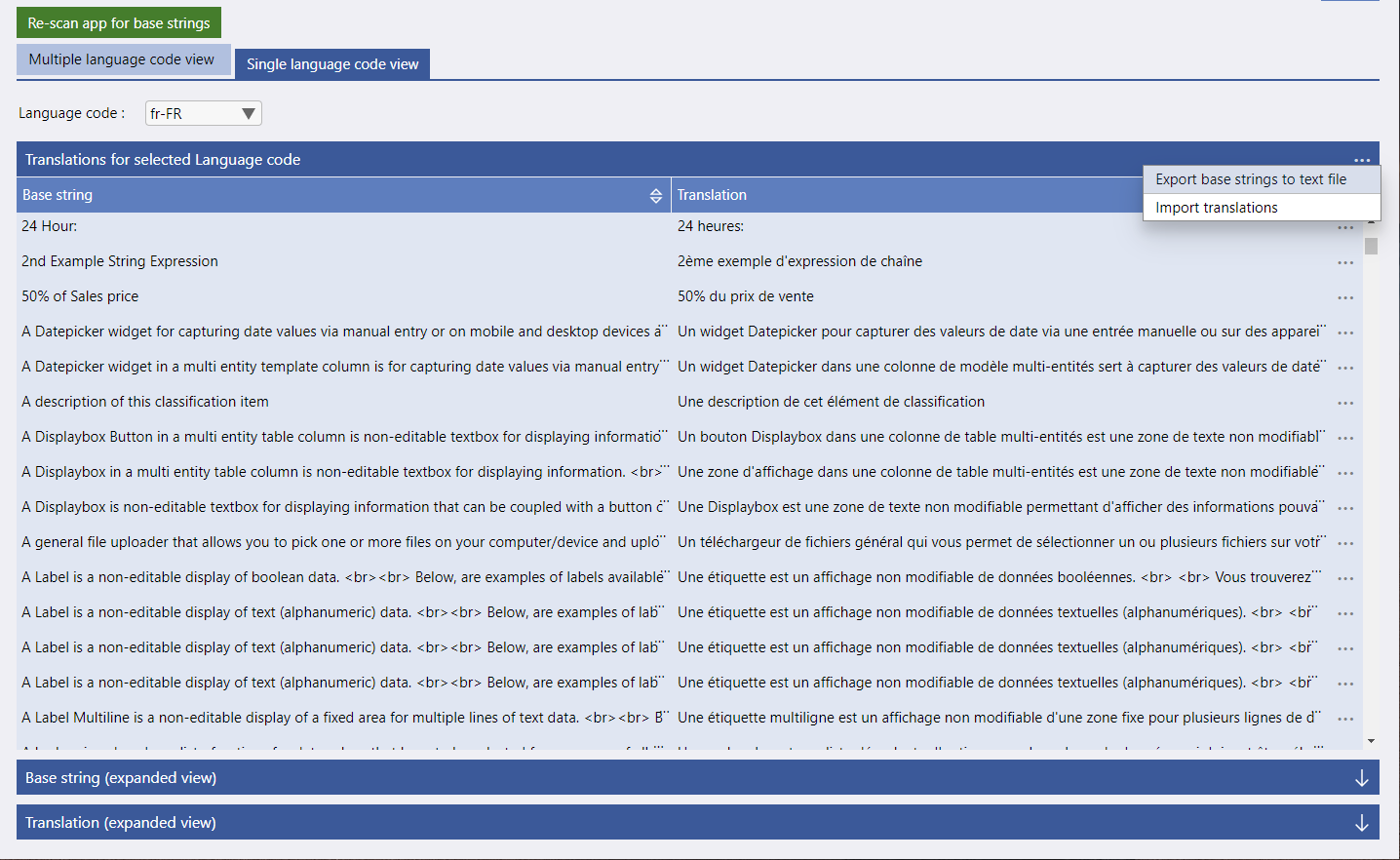
Use the Single language code view to show the list of Base Strings on the left and the Translations, that can be entered, on the right.
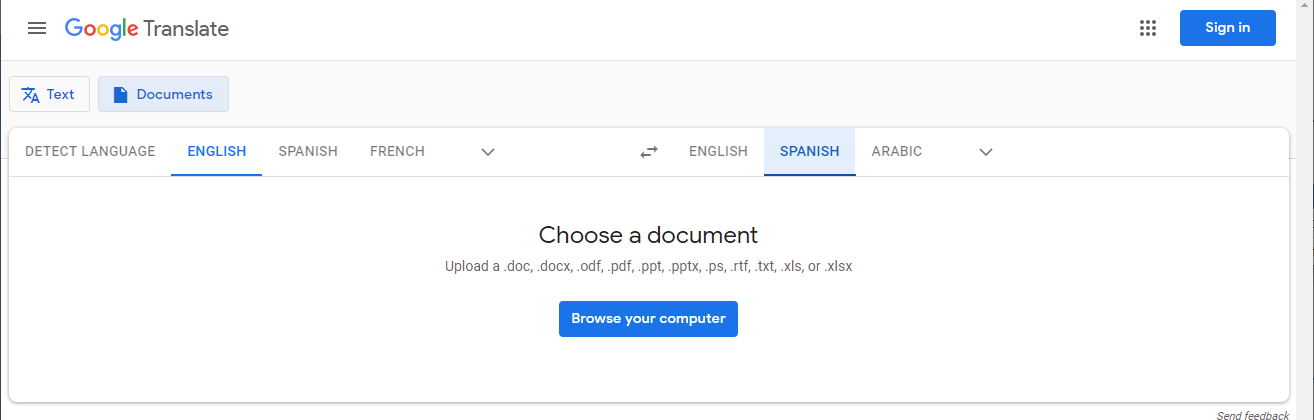
it is also possible to Export all the "base" text (strings) used in the app to a *.txt file. This *.txt file can then be used in an automated transaction service, such as Google Translate, to create a list of translated strings. The translated strings can then be Imported back in to the app as a group.
Please note that an automated translation service will obviously translate some phrases/strings in the app incorrectly as the tense/context of the text is not always available. As a result we always recommend that after importing a group of strings they are fully reviewed and any contextual or grammatical changes are corrected. This can be done using the Single language code view to show the list of
Base Strings on the left and the
Translations, that can be updated, on the right.
Whenever you make a change to the translations you will be offered the Accept / Reject buttons (shown on the left) at the top of the screen. These allow you to commit the transalations to the design or to reject/dismiss them.