
Pages - OverLay or Pop up Pages
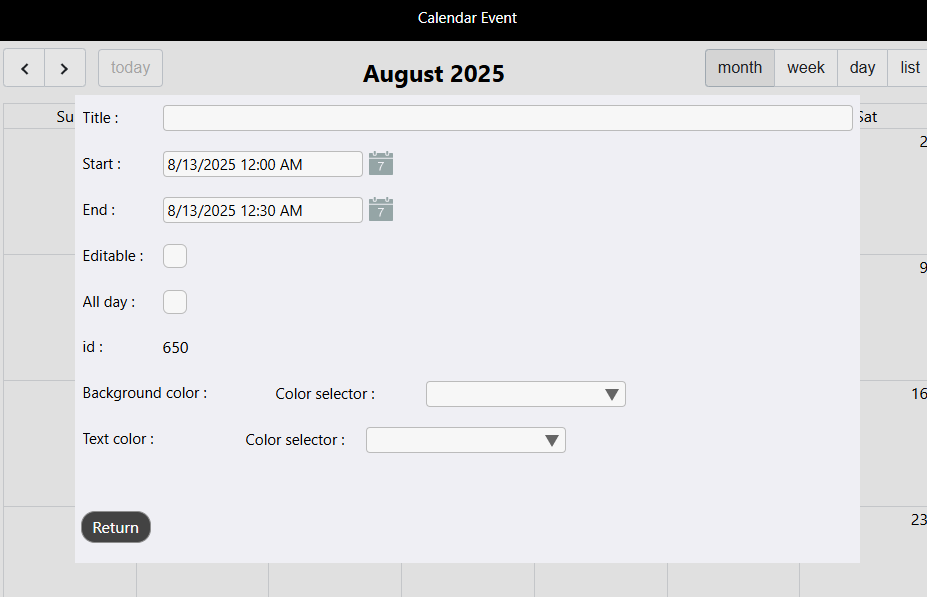
There are many times that you might want to have a pop up or overlay page when creating an app. A good example of these is the event window that pops up for a calendar when a user wants to create a new event (see example right)
For example, when users click on a day/time in the calendar you need to provide a way for them to enter the event details they want to set up. This is usually done with an overlay page that pops up in front of the calendar. There are many other examples where large or small pop up/overlay pages might be useful.
Overlay pages (pop up pages) are essentially just regular pages, with transparent segments around the edges to make them look like a pop up.
The most important (and most forgotten) thing on an overlay/pop up page is the "return button".
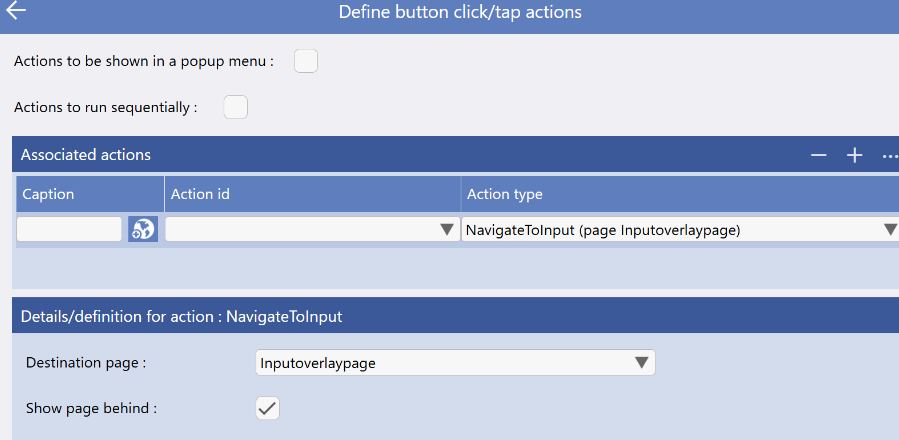
The example on the left shows this click action and that the checkbox at the bottom "show page behind" is checked.
This is what will allow the previous page to be displayed behind giving the impression of a pop up over the top of the existing page.
However, navigatetoinput removes the "back arrow" to return the previous screen and so the only way out of the popup/overlay page is through a return button with an action of "navigate to parent".
Navigatetoinput also supresses the "tick/cross" autosave options and so if you want to save something before returning then this must also be done on the return/back button.
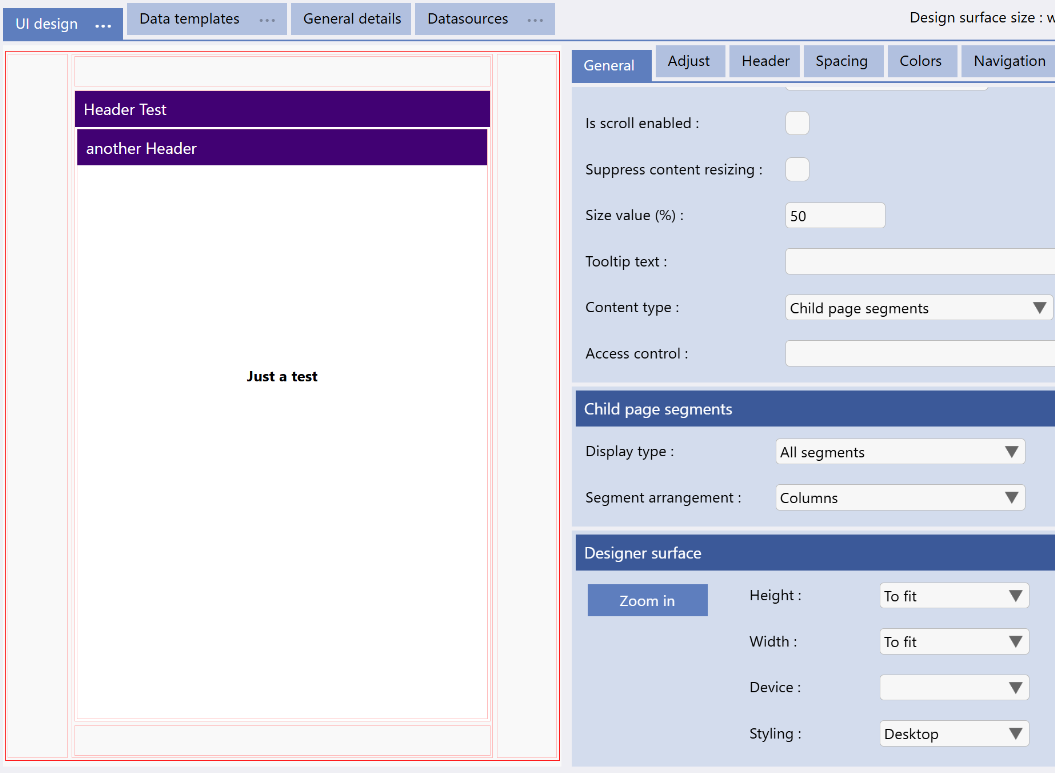
Create the page just as you would any page but then remove all but one segment.
Make that segment "Child page Segments" (see example right) and use the adjust tab to add more segments inside as per the picture i.e. three columns and the center column also becomes child page segments and is sub-divided into at least three rows.
The four segments around the edges should have their "Size Value" (see example on the right) set to 5 and the middle column and middle row should be set to 90.
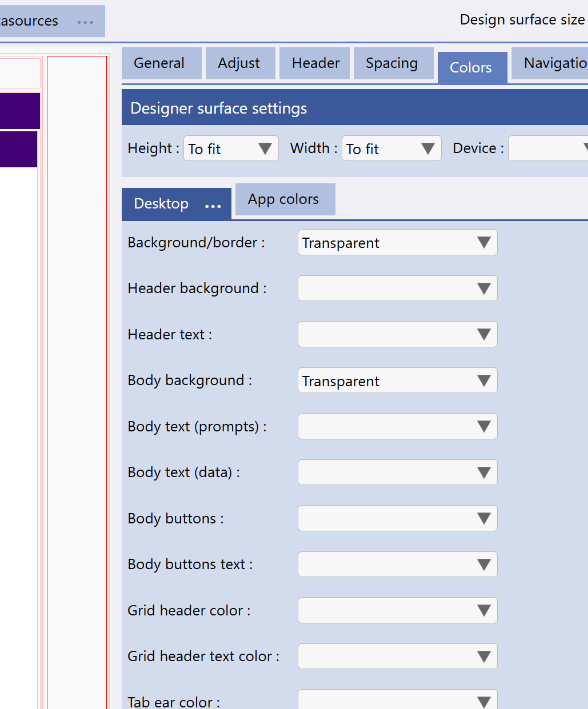
Background/border - is set to Transparent
Body Background - is set to Transparent.
It does not matter what you set the other colors to but we have left them clear in this example.
Now select the middle segment, the one inside the four outer segments and set its "colors":
Background/border - is set to White or whatever non transparent background color you want.
Body Background - is set to White or whatever non transparent background color you want.
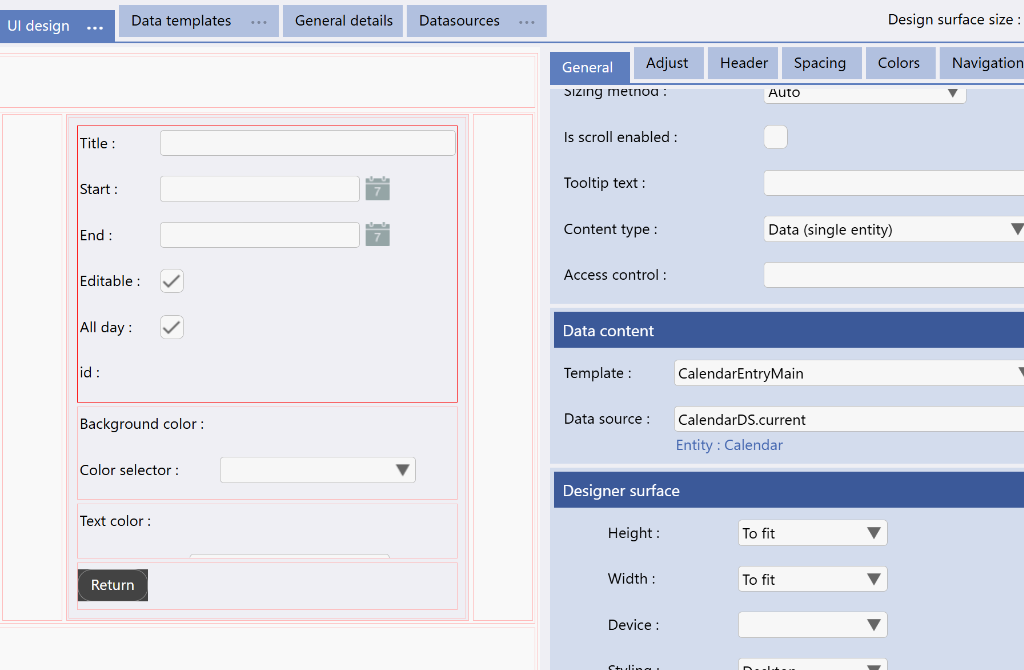
You can now configure the middle segment to be whatever you want, just as you would any page.