
Sending an Email
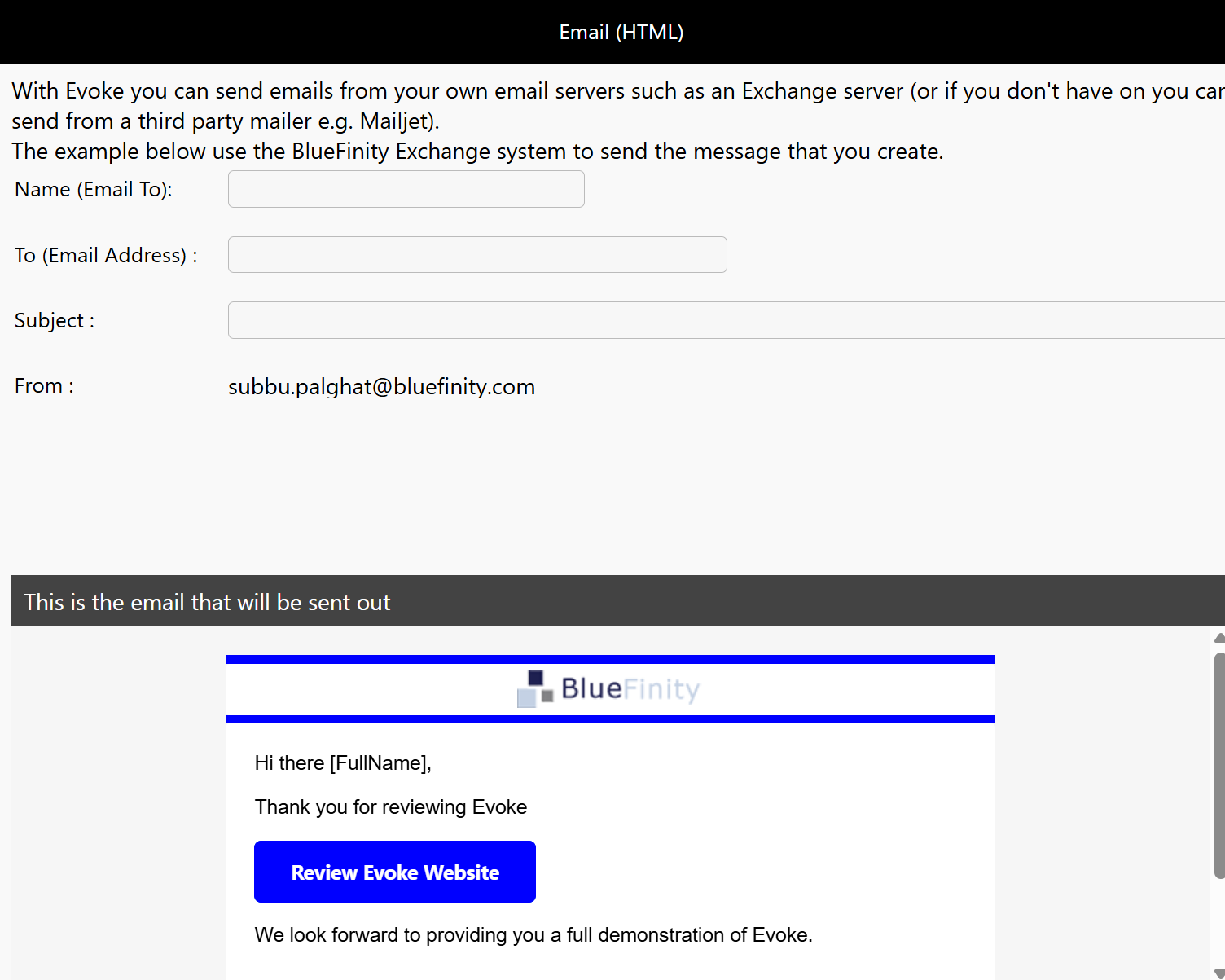
With Evoke you can send emails from your own email servers such as an Exchange server or if you do not have your own email server you can send from a third party mailer e.g. Mailjet).
To start configuring your ability to send emails you need to set up your email host's details. This is explained in the Apps section of this help.
To send emails you need to have an Entity with specific fields (properties) in e.g. To, From, Subject, etc. Evoke makes it easy for you with a option in the Entities section that automatically creates this.
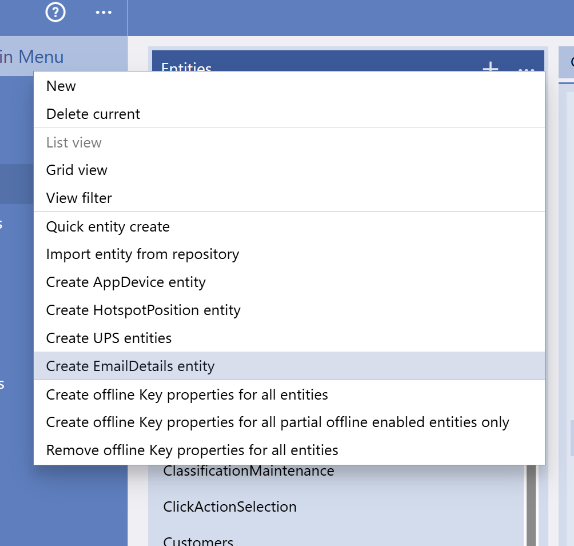
This will contain the properties From, To, Subject, BodyText, CC, Bcc, HTMLText
Before you move on from Entities consider if you want to set the initial value of any of these properties. we generally set the "From" property to be the email address that the email is coming from (as this is constant).
To configure an email on a Page.
First you will need a datasource configured of the Entity type of EmailDetails (or another similar DataSource if you already have one).
You can call the datasource whatever you want but it must be a Singular instance (not a collection).
Now you need to populate the properties in the email datasource that you created. You can do this in several ways, including:
-
The Image top right shows that you can display the properies with Textboxes for the user to fill in
-
You can use the clickactions "AssignStaticPropertyValue" or "AssignDatasourcePropertyValue" to populate data
-
As mentioned above you can set initial values in the entity and when you create a new entity instance these will be set.
Once you have set up the body of the email (the text of the email) you may wish to "personalise" this, possibly with the person you are sending the email to's name.
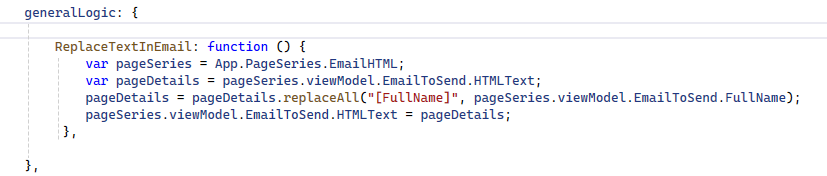
Before you send the email, use the click action "Call Custom" to call a local custom code routine. In this example we have named the routine "ReplaceTextinEmail". This routine needs to go in the "GeneralLogic" section of the Web\Scripts\Pages\(yourpageseriesname).js in your app solution. The custom routine example is replacing a placeholder we put into the email body with the full name of the person it is being sent to.
All you need to do now is send the email. 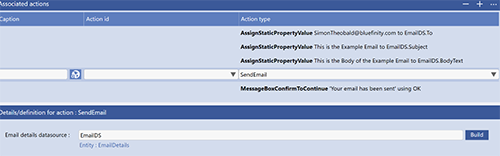 Use the Click Action "Send Email" and select the datasource you created for your email.
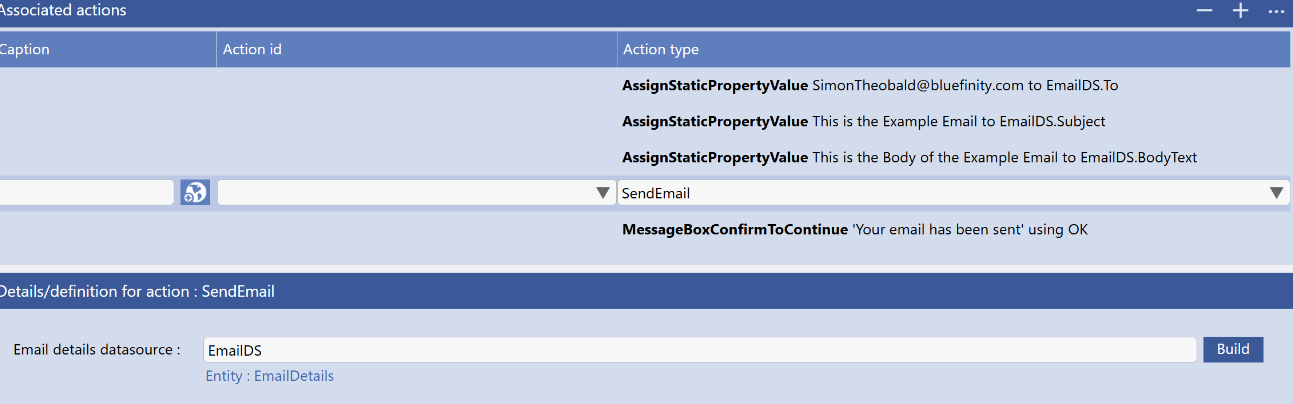
In the example of this shown on the right, we put up a message on the screen after the email is sent to confirm for the user and there are also examples of using static text to the properties.