
Multiple Evoke Developers working on a single App design
Evoke is designed to allow multiple developers to work on the same app design at the same time. However, multiple people working on the same things at the same time can have unwanted consequences. This section explains how Evoke allows multiple developers to work on the same app design at the same time without any of these unwanted consequences or for a single developer to 'try' out different changes before committing them.
-
Base Version
-
Work Item Version
Base Version
A Base version is created either by clicking Activate Update Logging button or by selecting the option NewBase when creating a duplicate version. A Base Version can have Work Item Versions associated with it that will contain changes made by you or another developer and these can be merged into the base.
Work Item Version
A Work Item Version, a duplicate of a base version App design, can be modified by a developer, generated and run for test purposes just as any app design would be. When the developer is happy with the changes the Work Item Version can be merged back into the Base version that it is associated with.
App Version Settings of a Work Item
With the exception of the Authorised Developer tab, all the App Version settings in a Work Item Version, that are set in the App menu, are locked in Work Item Versions and can only be changed in the Base Version. These include changes such as colors, fonts, additional developer security privilages, etc.
How Multiple Developer Support in Evoke Works
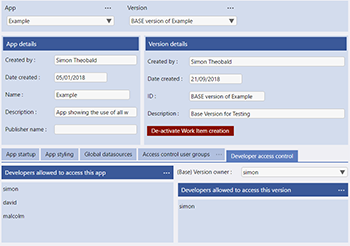
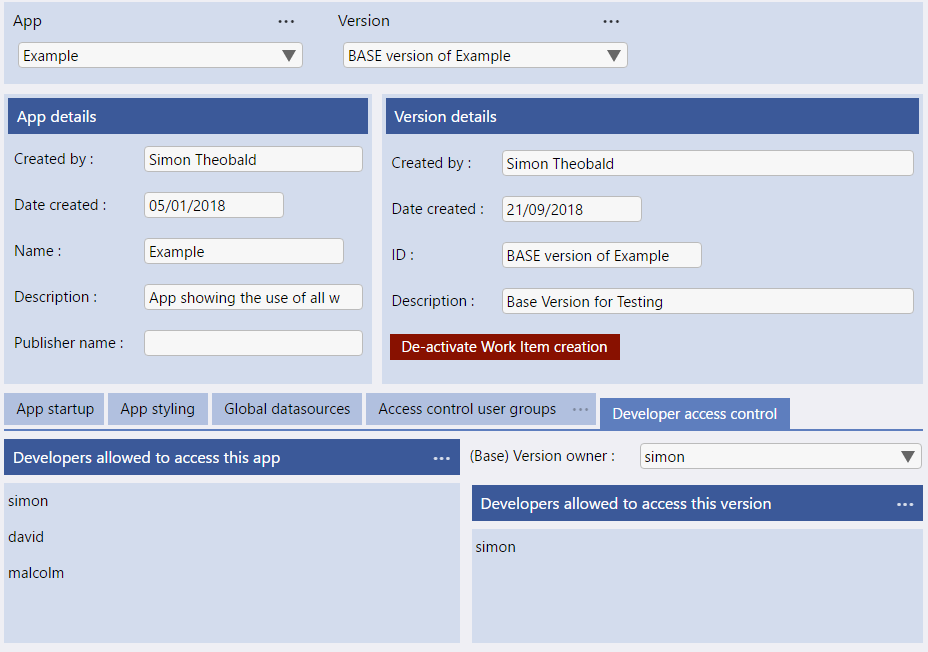
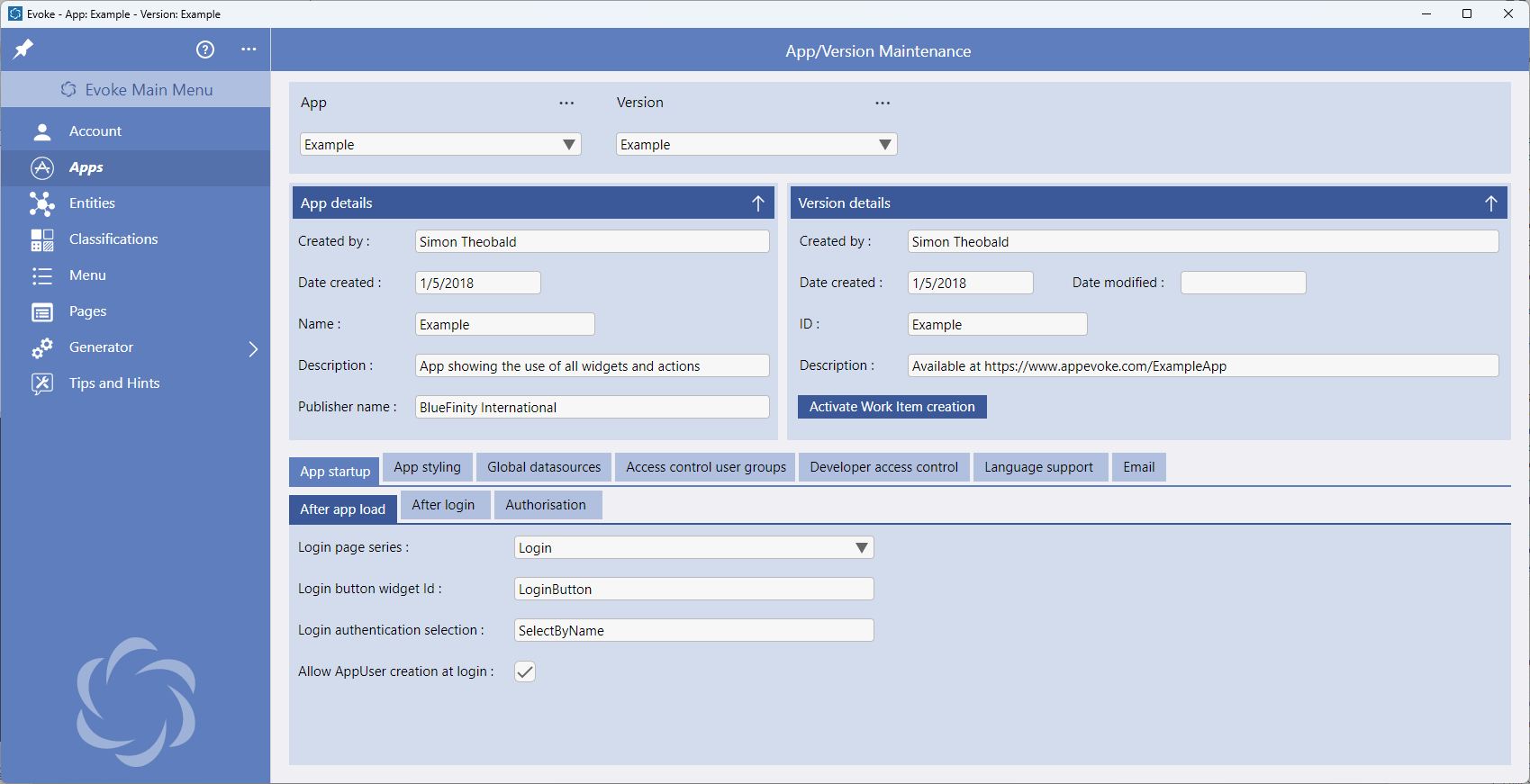
Conceptually, using multiple developers to work on a single app design in Evoke is the same as most team working processes. A person (Evoke user account) will need to become the "owner" of the App Design. The Owner of the App design would click the "Activate Work Item creation" button. This would convert the App Design from a standalone version to a base version app design and change the button colour to red.
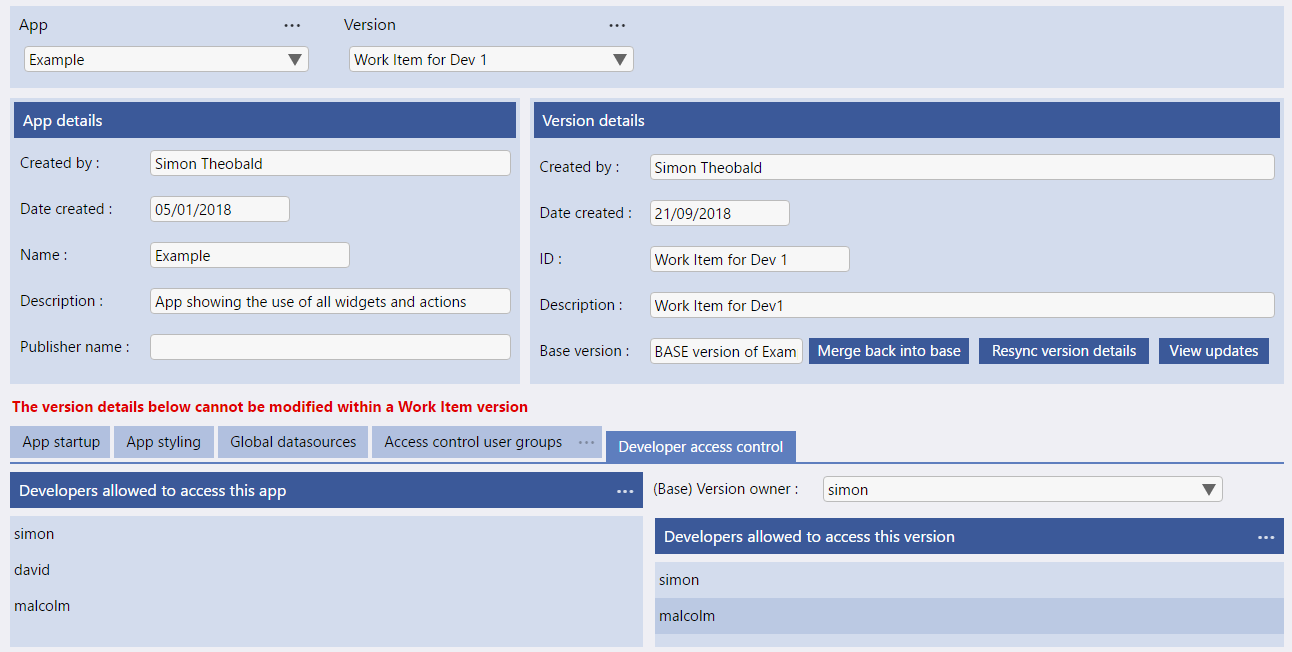
The App Owner can then select him/herself as the owner of the base version of the app design in the "Developer Access Control" area (see image).
The Base Version owner is now conceptually the "team leader" and the Base Version of the App is conceptually the "Master" version. The team leader can now set "work items" for his/her team members, which may include him/herself, without impacting/changing the base version. To do this the owner will "duplicate" (using the duplicate option in the Version ellipsis) to create a "work item version" of the base app.
It is important to set the Authorised Developers for each app and version so that a developer can access both the app (app design) and specific app versions (including the work item versions) as this is the method of setting internal security/access levels for your team.
If the developer(s) already has a copy of Evoke open then they will need to use the "Reload Apps" option in the "App" ellipsis menu to see the new version(s) created).
In the "Work Item Version" the App Owner can then designate which members of the team (Evoke user accounts) are authorised to access and change the specific "Work Item Version" of the app design in the "Developer Access Control" area (see image).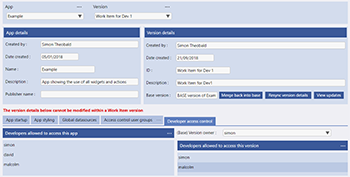
The team member then completes there work on the Work Item Version of the App Design, can generate the app design, test, etc. If the developer needs settings from the "app" menu changed, the team leader/owner can do this in the BASE version and the "Resync Version Details" button in the Work Item version will allow the developer to update these to be the same in the Work Item Version (see description below).
When all the work and testing is complete, and it is a suitable point for the team leader/owner, the Owner/Team Leader can go into the Work Item Version and click the "Merge Back Into Base" button to Merge the Work Item Version changes back into the Base Version. Please note that the team member that made the changes to the work item will not be able to merge the changes back into the base version, only the base version owner can merge work items back into base.
This process can now be repeated with the same developer (creating a new work item) or other members of the team. It is possible to have multiple "Work Item" Versions in development at the same time.
The App Owner can then select him/herself as the owner of the base version of the app design in the "Developer Access Control" area (see image).
The Base Version owner is now conceptually the "team leader" and the Base Version of the App is conceptually the "Master" version. The team leader can now set "work items" for his/her team members, which may include him/herself, without impacting/changing the base version. To do this the owner will "duplicate" (using the duplicate option in the Version ellipsis) to create a "work item version" of the base app.
It is important to set the Authorised Developers for each app and version so that a developer can access both the app (app design) and specific app versions (including the work item versions) as this is the method of setting internal security/access levels for your team.
If the developer(s) already has a copy of Evoke open then they will need to use the "Reload Apps" option in the "App" ellipsis menu to see the new version(s) created).
In the "Work Item Version" the App Owner can then designate which members of the team (Evoke user accounts) are authorised to access and change the specific "Work Item Version" of the app design in the "Developer Access Control" area (see image).
The team member then completes there work on the Work Item Version of the App Design, can generate the app design, test, etc. If the developer needs settings from the "app" menu changed, the team leader/owner can do this in the BASE version and the "Resync Version Details" button in the Work Item version will allow the developer to update these to be the same in the Work Item Version (see description below).
When all the work and testing is complete, and it is a suitable point for the team leader/owner, the Owner/Team Leader can go into the Work Item Version and click the "Merge Back Into Base" button to Merge the Work Item Version changes back into the Base Version. Please note that the team member that made the changes to the work item will not be able to merge the changes back into the base version, only the base version owner can merge work items back into base.
This process can now be repeated with the same developer (creating a new work item) or other members of the team. It is possible to have multiple "Work Item" Versions in development at the same time.
Actions relating to Work Items Versions
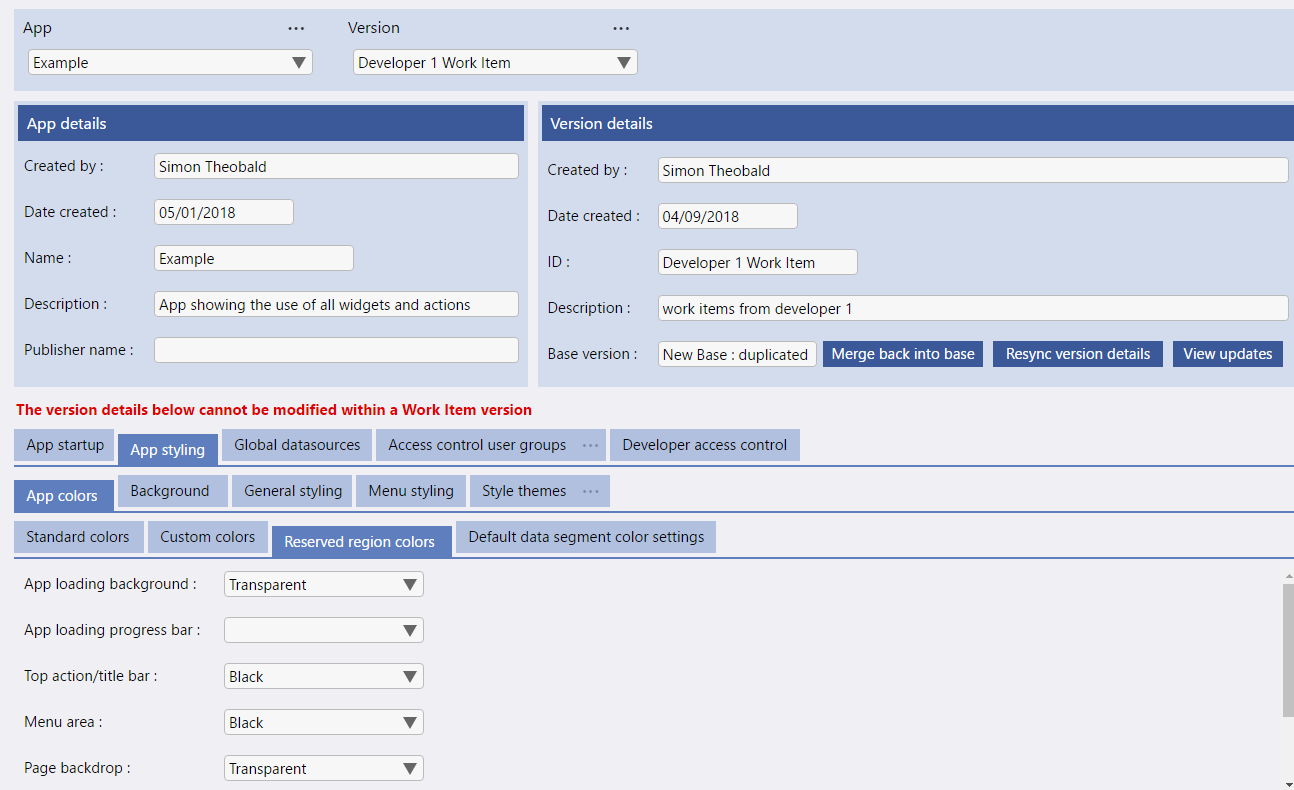
These options are used to ensure that the different work items, being developed and tested by a single or multiple developers are successfully recombined into a working app design.
Merge Back Into Base
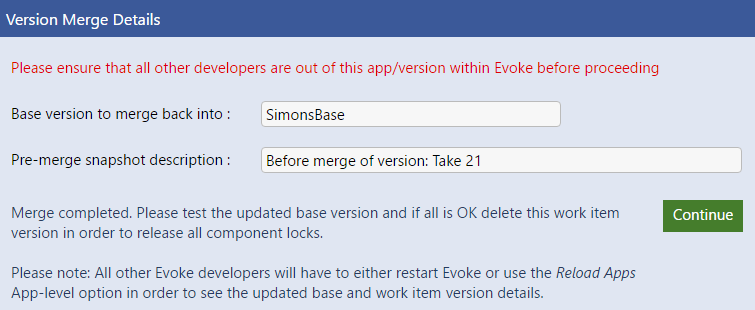
Once a work item is merged back into base it is locked (deactivated) so that it cannot inadvertently be modified or merged into the base a second time.
Prior to the merging of work item versions back into the base version a 'Snapshot' of the design is taken automatically so that this can be reverted back to by the owner of the base version if required. The snapshot is accessed via the standard "revert to snapshot" option. If the snapshot, prior to a work item version merge, is reverted back to then the work item is re-activated and able to, once again, be changed by the team member/developer.
ReSync Version Details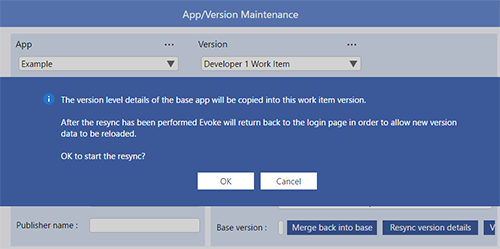
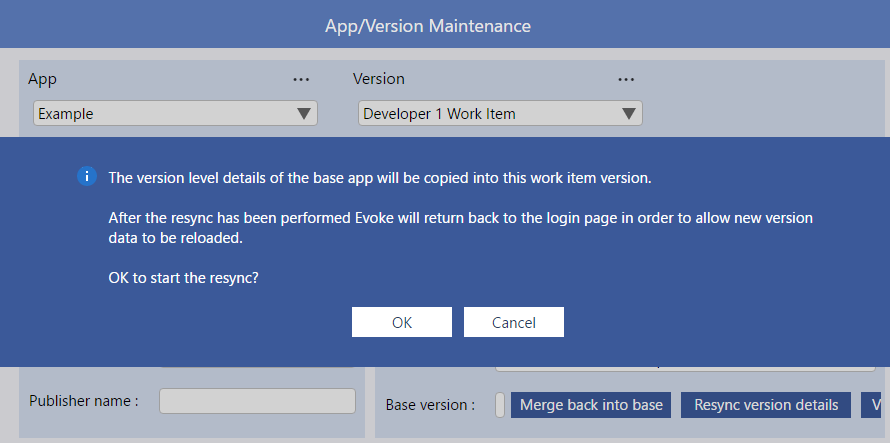
As indicated above, App Version settings in a Work Item Version, that are set in the App menu, are locked in Work Item Versions and can only be changed in the Base Version. These include changes such as colors, fonts, additional developer security privilages, etc.
If you change these settings in the Base Version of an App Design it is likely that you will want to re-synchronise them into the Work Item Version.
The Re-Sync version details button will update the app version details (the options in the 'Apps' menu) in the Work Item Version to match those in the Base Version. It will then reload the Work Item Version ready for you to continue development.
If you change these settings in the Base Version of an App Design it is likely that you will want to re-synchronise them into the Work Item Version.
The Re-Sync version details button will update the app version details (the options in the 'Apps' menu) in the Work Item Version to match those in the Base Version. It will then reload the Work Item Version ready for you to continue development.
View Updates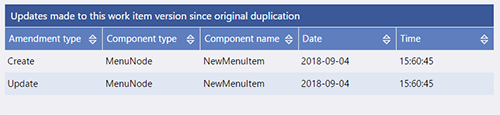
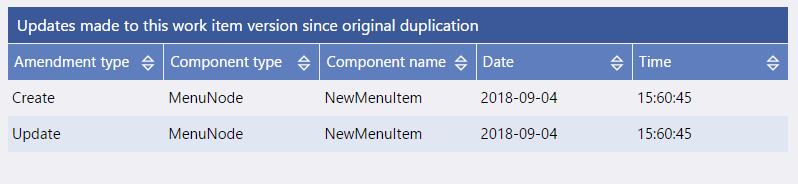
View Updates simply allows you to see the updates that you have made in this Work Item App Design Version.