Custom Code via a Click Action
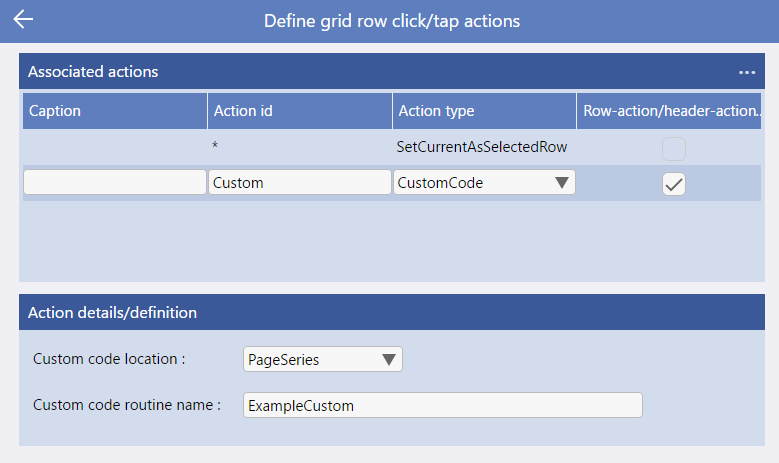
One of the Evoke Click Actions is "Custom Code". This allows you include and execute some custom code when the Click Action is performed e.g. on a datagrid row menu, a button, a header or any of the other places Click Actions can be performed.
The CustomCode Click action raises an event for custom JavaScript to hook into. This section of the Evoke User Guide help system will guide you through using this click action and including your custom code.
As part of the Click Action you must choose a Custom Code Location: Choose an option from a) Page Series - The Routine is held within the custom.generalLogic object of the parent Page Series and b) App - The Routine is held in the App.cusom object (in App.js).
Second you must choose a Custom Code Routine Name - the name of the custom code routine to be executed.
As part of the Click Action you must choose a Custom Code Location: Choose an option from a) Page Series - The Routine is held within the custom.generalLogic object of the parent Page Series and b) App - The Routine is held in the App.cusom object (in App.js).
Second you must choose a Custom Code Routine Name - the name of the custom code routine to be executed.
The following provides examples of each of the Custom Code Location options. In these examples the Custom Code Routine entered is "ExampleCustom".
-
Page Series - The Routine is held within the custom.generalLogic object of the parent Page Series
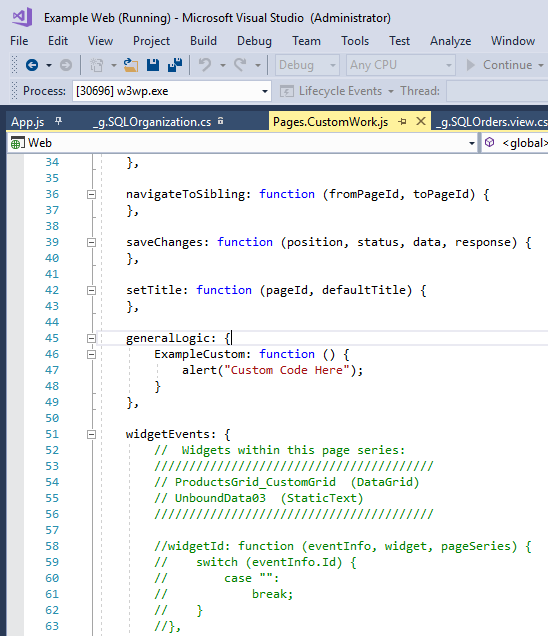
The Page Series that the Example App uses for this Custom Click Action is called "CustomWork" so in the Web project part of the Visual Studio Solution, we have opened "Scripts", "Pages" and then "Pages.CustomWork.js
In the "generallogic" object we have added the simple customisation of adding the ExampleCustom Function and an alert (please see image on right).
This function is now called whenever the Click Action is executed. -
App - The Routine is held in the App.custom object (in App.js)
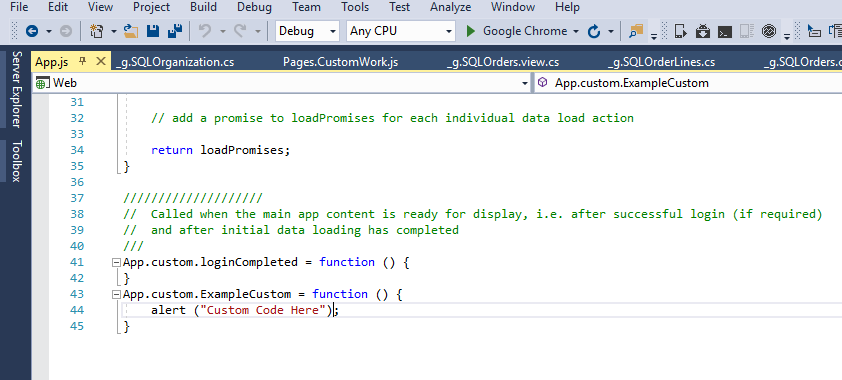
we have opened "Scripts", "App" and then "App.js
We have added, below the last function
App.custom.ExampleCustom = function () {
alert ("Custom Code Here");
}
Please see image below).
This function is now called whenever the Click Action is executed.