
Custom Code for PayPal and Stripe
PayPal
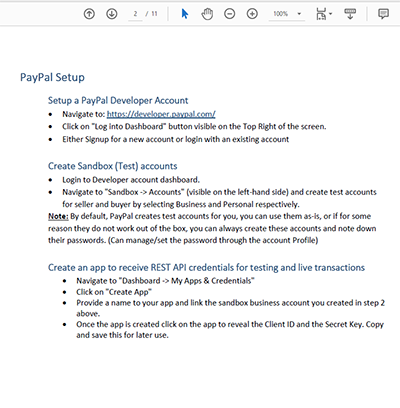
Support for PayPal through an Evoke Conponent is only part of what is needed to take PayPal payments. The acquirer (entity that wishes to receive payments via PayPal) must have a PayPal developer and real account to receive the money into.
It is the PayPal Developer account that will provide the PayPal test area (Sandbox) and both the Sandbox and live Client ID and Secret Key that is used to secure the PayPal payments.
The calls to PayPal functions, from within your app design also need to pass various information about the items being purchased, the total value of the transaction, the shipping information (are you giving PayPal the shipping address or using the address PayPal have on file), etc.
You also need to consider if you wish to to include handling fees, shipping fees, tax details, the currency you want to receive your payment in, etc. For these reasons, a small amount of custom javascript much be added to your Evoke App Design Project (see below) and a comprehensive review of all the available PayPal parameters is provided in a PayPal explanation document that we have produced for you.
It is the PayPal Developer account that will provide the PayPal test area (Sandbox) and both the Sandbox and live Client ID and Secret Key that is used to secure the PayPal payments.
The calls to PayPal functions, from within your app design also need to pass various information about the items being purchased, the total value of the transaction, the shipping information (are you giving PayPal the shipping address or using the address PayPal have on file), etc.
You also need to consider if you wish to to include handling fees, shipping fees, tax details, the currency you want to receive your payment in, etc. For these reasons, a small amount of custom javascript much be added to your Evoke App Design Project (see below) and a comprehensive review of all the available PayPal parameters is provided in a PayPal explanation document that we have produced for you.
The PayPal payment button raises an event for custom JavaScript to hook into. This section of the Evoke User Guide help system will guide you through including your custom code.
First you must identify the location, in your Visual Studio solution to put the PayPal code. This is in the Web project and is the Scripts folder and then the Pages folder. Here you will find a file called "Pages.YourPageSeriesName" - where YourPageSeriesName is the Page Series, in your app design, that holds the Page with the PayPal button. Note: this is the PageSeries that holds the Page not the Page. Please see Visual Sudio solutions explorer example on the left.
Within this file you need to identify the exact place to put your custom code.
The Routine is held within the custom.generalLogic object of the file (search generalLogic in the file if you cannot find it).
An example of the Code that must be added (as described in the document above) is now shown on the right. Click on the image to make it bigger
First you must identify the location, in your Visual Studio solution to put the PayPal code. This is in the Web project and is the Scripts folder and then the Pages folder. Here you will find a file called "Pages.YourPageSeriesName" - where YourPageSeriesName is the Page Series, in your app design, that holds the Page with the PayPal button. Note: this is the PageSeries that holds the Page not the Page. Please see Visual Sudio solutions explorer example on the left.
Within this file you need to identify the exact place to put your custom code.
The Routine is held within the custom.generalLogic object of the file (search generalLogic in the file if you cannot find it).
An example of the Code that must be added (as described in the document above) is now shown on the right. Click on the image to make it bigger

While the PayPal setup document describes these, it is helpful to explain the following:
Although our example code is not able to be copied and used as is (Datasource names, Page names and Property names, amongst others, will be different in your app), we have been asked to provide it as a starting point for some customers, therefore we have been happy to provide this in a notepad.txt file for you to download here.
While the PayPal setup document describes these, it is helpful to explain the following:
pageSeries.widgets.OnlinePaymentPaypalPaymentTest.definition.defaultCurrency picks up a parameter from the Component description
pageSeries.viewModel.DS_ShoppingBasket.current.OrderTotal picks up the OrderTotal from the DS_Shoppingbasket datasource.